Flow Builder guide
Make your trackers do things on their own: send alerts, run commands, forward data, all without writing code. This guide takes you from your first sign-in to a working flow, one screen at a time.
1. What Flow Builder does
Flow Builder is a web app for your flespi account. You build a flow: a small automation that watches some of your trackers and does something when the moment comes. Every flow answers three questions:
Some examples of flows:
- “When a van drives faster than 90 km/h, send me a Telegram message.”
- “When a tracker stops reporting for 10 minutes, tell me, and tell me again when it is back.”
- “When the ignition turns on, send the tracker a command.”
- “Every morning at 08:00, list the trackers that are offline.”
- “Forward all messages of these trackers to another platform.”
You build the flow on screen, try it on your trackers’ recent data (nothing is sent while you try), then turn it on. From then on it runs inside flespi by itself, around the clock. Flow Builder does not need to stay open.
2. Signing in
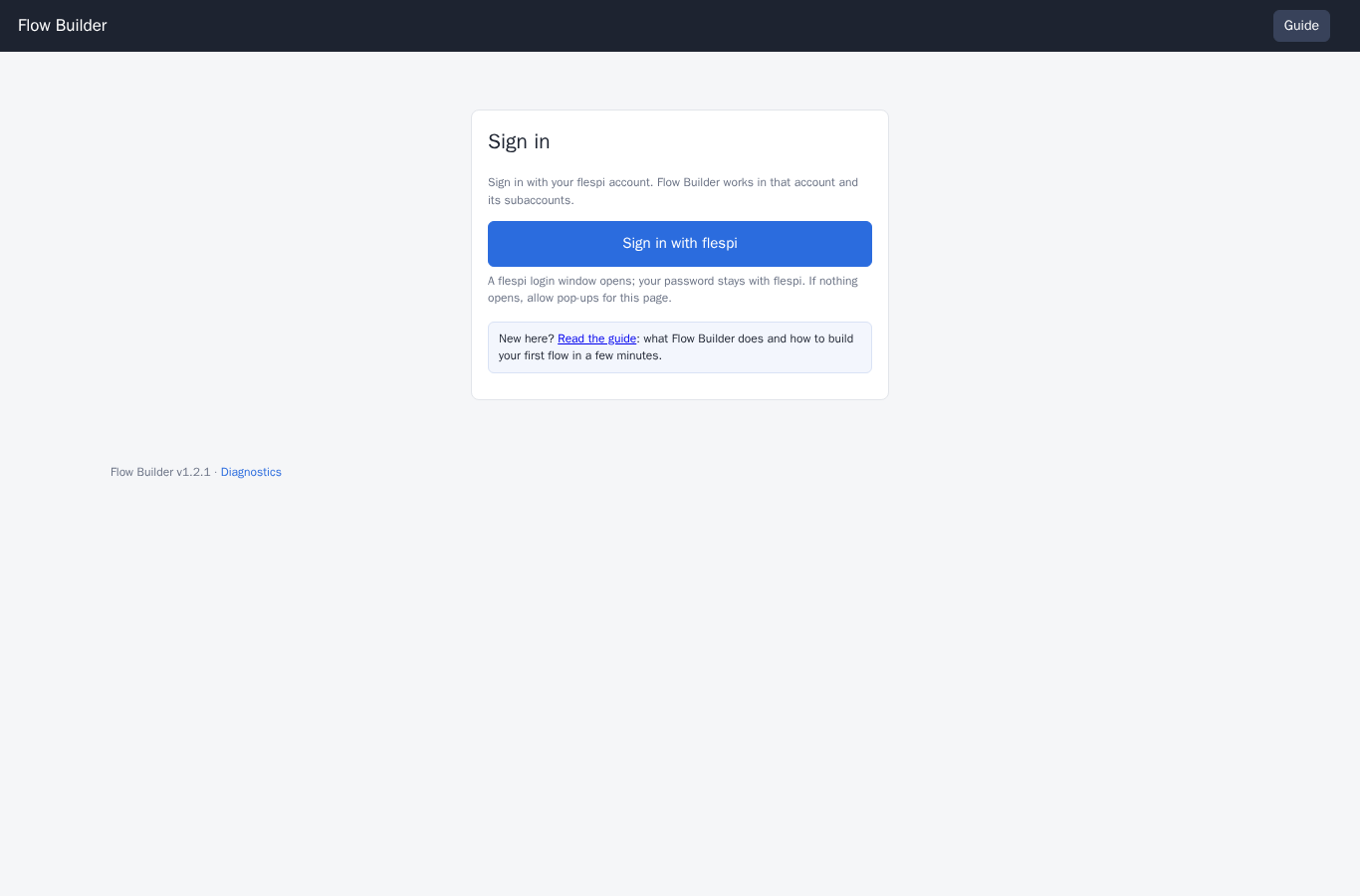
Open Flow Builder and press Sign in with flespi. A flespi login window opens. Sign in there with the flespi account that owns your trackers. Your password stays with flespi; Flow Builder only receives a session for that account.
 12
12- Press Sign in with flespi.
- New here? This link opens this guide.
- If nothing opens, your browser blocked the pop-up. Allow pop-ups for the Flow Builder page and press the button again.
- flespi may ask you to confirm that the session is passed to the app. Confirm it.
- The session ends after an hour without activity. Flow Builder then asks you to sign in again; your flows keep running in the meantime.
- Sign out in the top right ends the session in this browser.
What access the app uses
Flow Builder works with full (master) access to the account you sign in with, because turning a flow on creates parts of it in your account: a subaccount for the flow, access to the trackers, webhooks and so on (see Turning a flow on). It only changes things it created itself; everything it creates is tagged “Flow Builder” and tied to one flow.
If your account has subaccounts, pick the one to work in with the account selector in the header (it shows the current account, e.g. “My account”).
3. The home page: your trackers and your flows
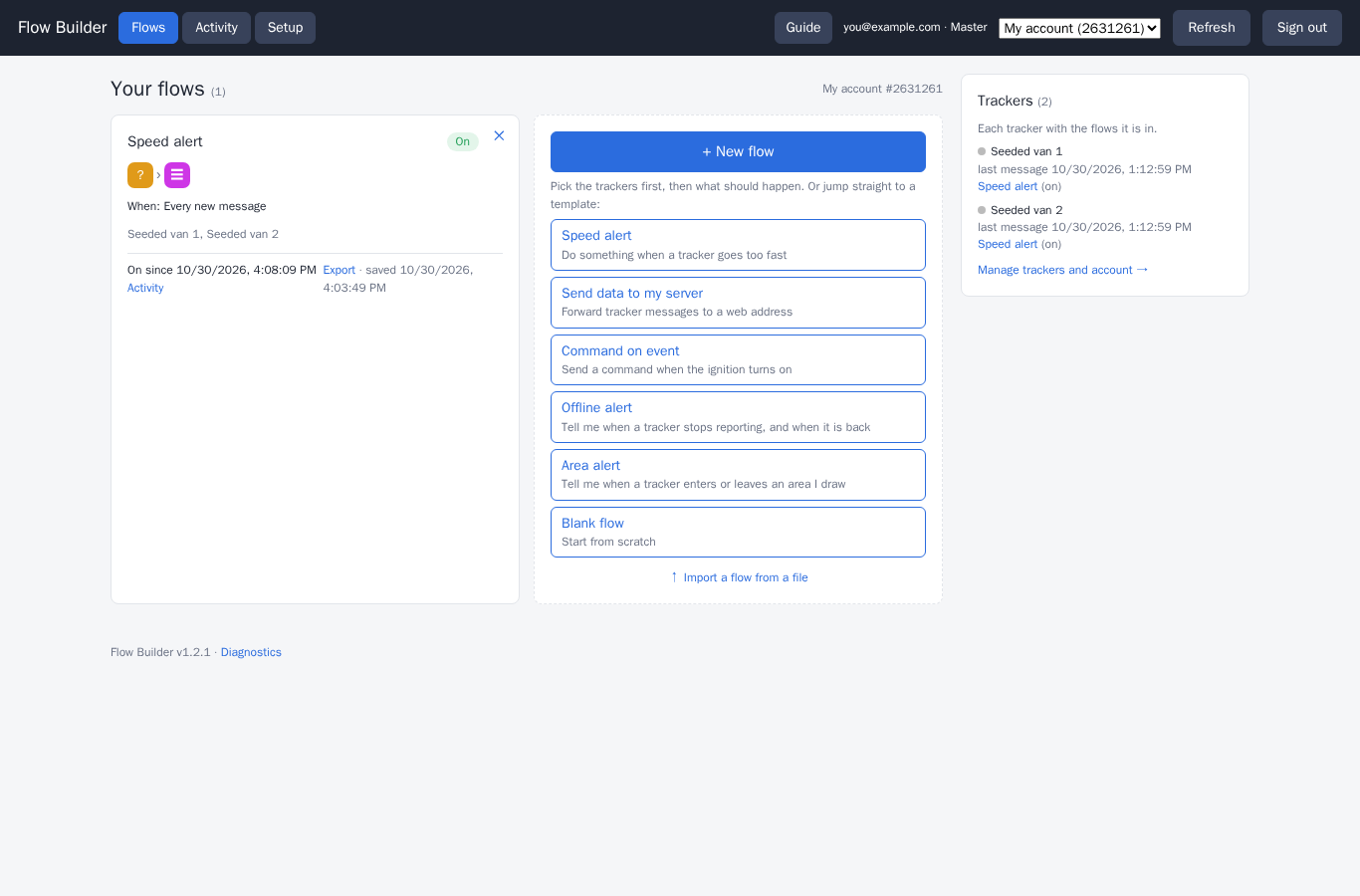
After signing in you land on Flows, the home page.
 12345
12345- Pages: Flows, Activity and Setup.
- Guide opens this guide; the account selector switches between your account and its subaccounts.
- A flow card: its name, status, steps, when it runs and its trackers.
- + New flow and the templates.
- Your trackers, and the flows each one is in.
Flow cards
Each flow has a card showing:
- its name and status: a draft, On, Paused, or changes saved but not yet running;
- a row of icons for its steps, and a When: line saying what starts it;
- the trackers it works on;
- On since… or Not running, an Activity link for running flows, and Export to download the flow as a file;
- ✕ in the corner deletes the flow.
Click a card to open the flow in the editor.
Starting a new flow
The last card offers + New flow, five templates and ↑ Import a flow from a file. The templates are ready-made flows you only need to adjust:
| Template | What it does |
|---|---|
| Speed alert | Sends a tracker’s data to your server when it drives faster than 90 km/h. |
| Send data to my server | Forwards every message of the selected trackers to your web address. |
| Command on event | Queues a command to a tracker when its ignition turns on. |
| Offline alert | Sends a Telegram message when a tracker stops reporting, and another when it is back. |
| Area alert | Sends a Telegram message when a tracker enters an area you draw, and another when it leaves. |
| Blank flow | Starts from scratch. |
Your trackers
The trackers list on the right shows the trackers of the account and which flows each one is in. Below it, Manage trackers and account → opens the Setup page. Searching and filtering happen when you pick the trackers for a flow (see Your first flow).
No trackers yet?
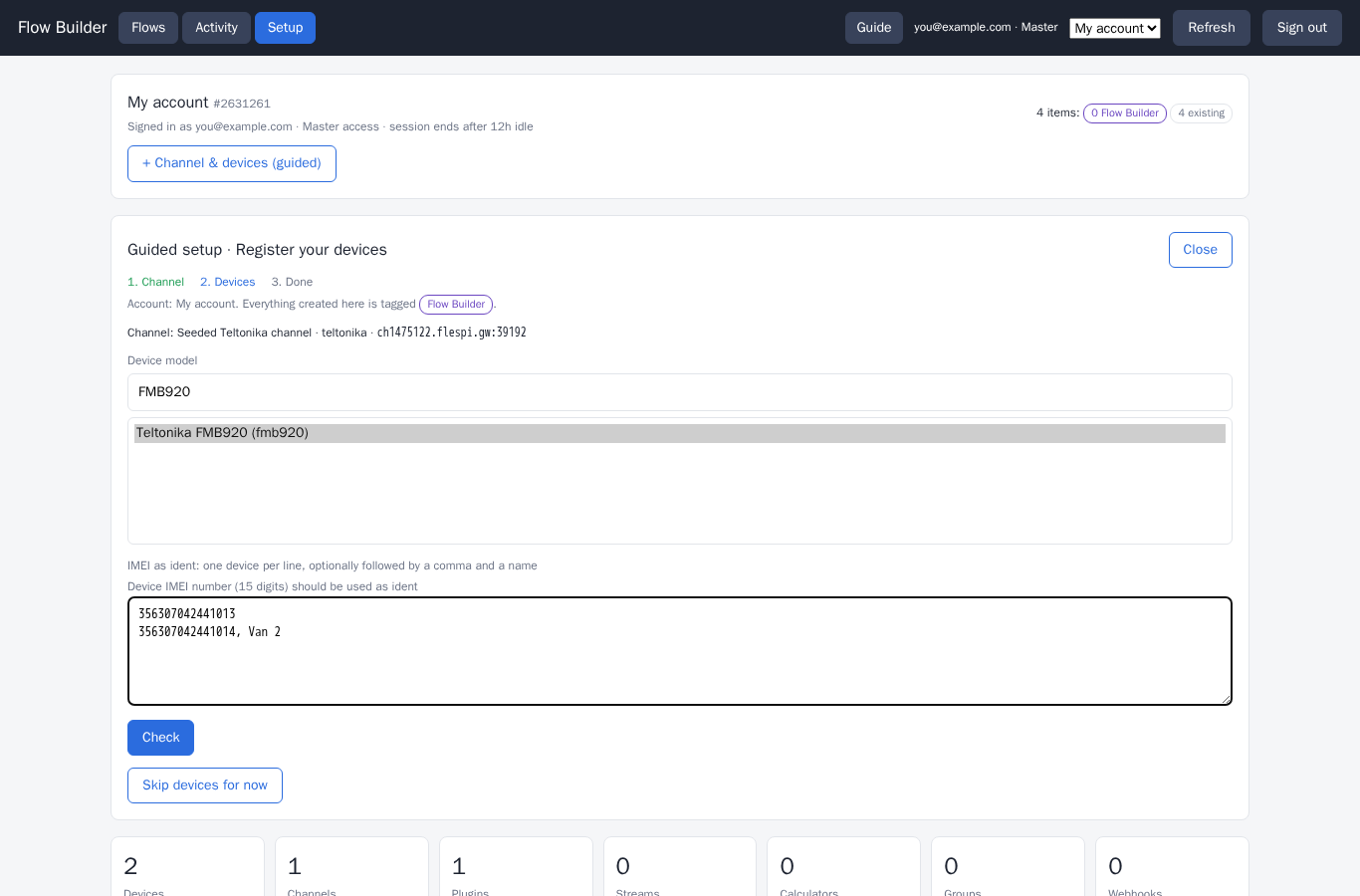
If the account has no trackers, the home page offers Set up trackers. The Setup page lists what the account already has (devices, channels, plugins, streams, calculators, groups, webhooks). Press + Channel & devices (guided) for a three-step wizard:
- Channel. Use a channel you already have, or search your trackers’ protocol (e.g. teltonika, queclink, concox), give the new channel a name and press Review. A channel is the connection point your trackers send data to.
- Devices. Pick the device model, then enter the trackers’ IMEIs, one per line, optionally followed by a comma and a name (
356307042441014, Van 2). Press Check: each line is checked and a short plan appears; press Register N devices. Skip devices for now lets you add them later. - Done. The wizard shows the server address and port, e.g.
ch1234567.flespi.gw:12345. Enter it in your trackers’ configuration tool or by SMS, using the domain name rather than an IP address.
Trackers appear on the home page as soon as they send data.
 123
123- The wizard’s three steps.
- Pick the device model.
- Enter the IMEIs, one per line.
4. Your first flow in 5 minutes
Let’s build “tell me in Telegram when a tracker drives faster than 90 km/h”, starting from the Speed alert template.
Before you start: a Telegram bot
Flow Builder sends Telegram messages through your own bot. In Telegram, open @BotFather, create a bot and copy the bot token it gives you. Add the bot to the chat or group that should receive the alerts and note that chat’s chat id.
Build it
- Pick the template. On the home page press Speed alert in the last card.
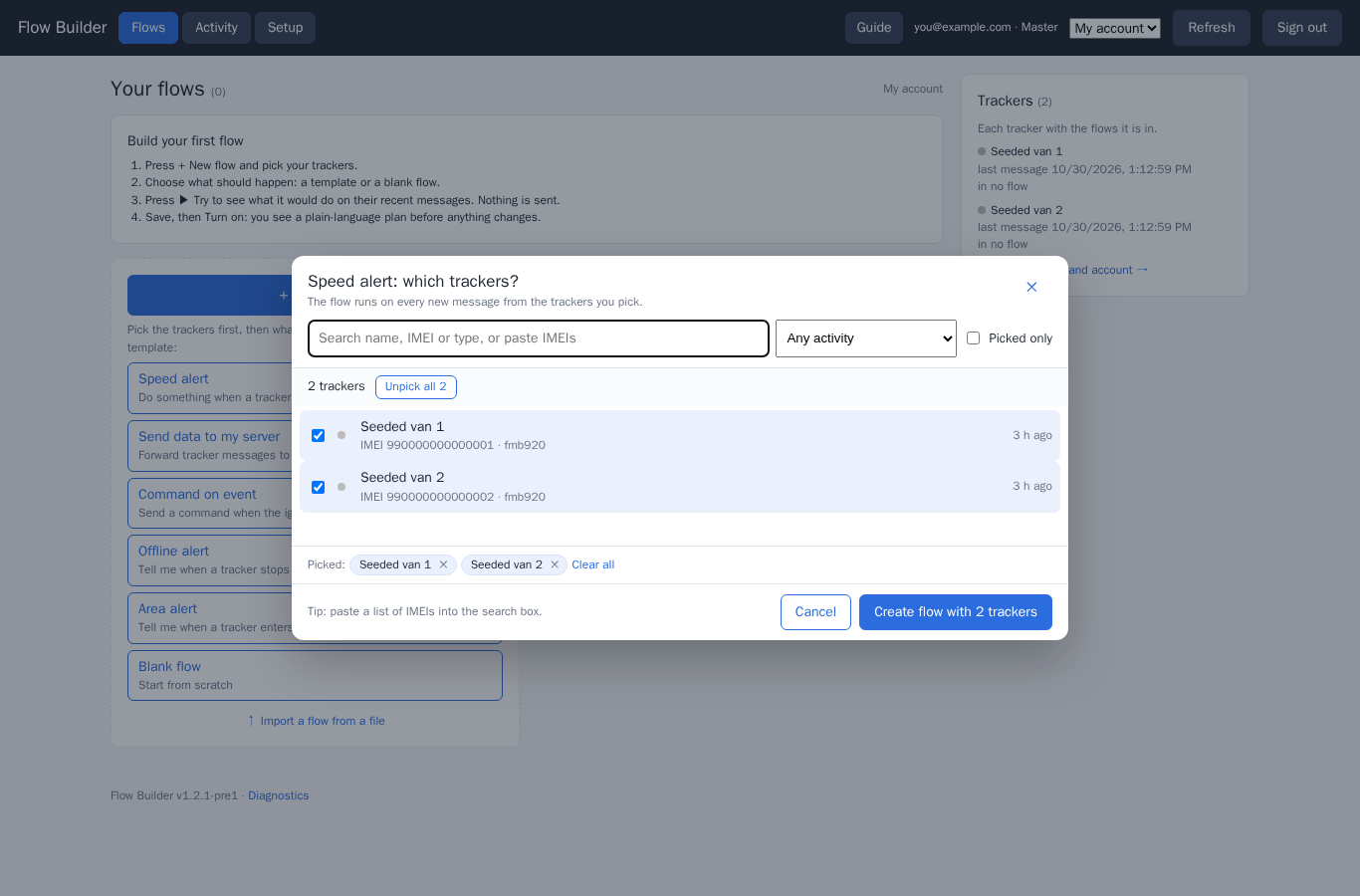
- Pick the trackers. Tick the trackers the flow should watch and press Create flow with N trackers. Search by name, IMEI or type, paste a list of IMEIs, or filter by activity: connected now, sent data in the last 24 h, silent for 7+ days, never sent data.
 1234
1234- Search, or paste a list of IMEIs.
- Filter by activity.
- Tick the trackers.
- Create the flow with the picked trackers.
- Read the intro. The editor opens with a short box: What it does, How it works and Setup. Press Got it when you have read it.
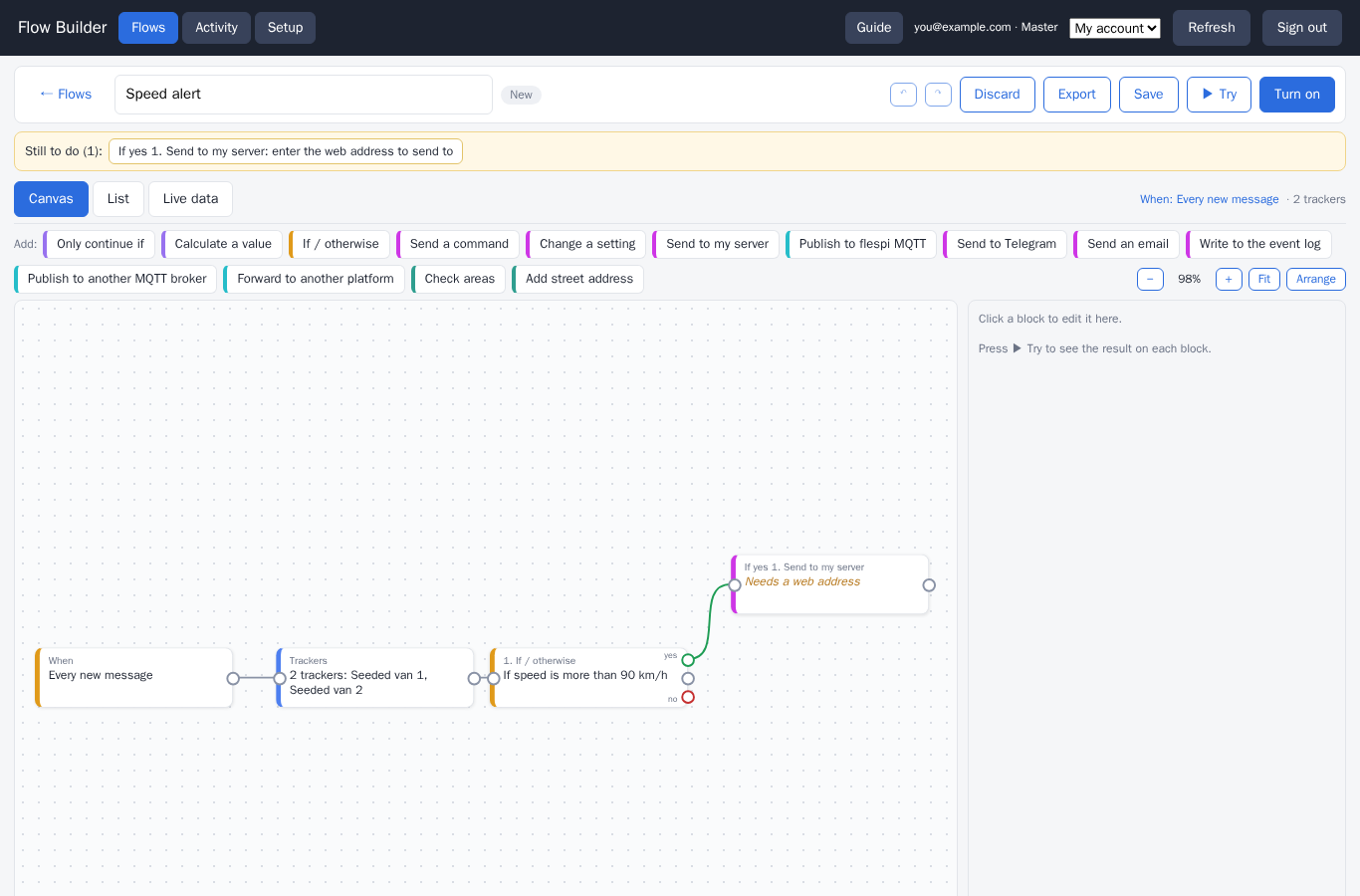 12345
12345- The flow’s name. Click to rename it.
- Save, Try and Turn on.
- Switch between Canvas, List and Live data.
- The When step: what starts the flow.
- The If step and its “if yes” branch.
- Set the limit. Click the If step. It reads like a sentence: If speed is more than 90 km/h. Change the number if you like. Under Run, keep Once, when it becomes true, so you get one alert when the tracker goes over the limit, not one for every message.
- Swap the result to Telegram. The template posts to a server; we want Telegram instead. Select the Send to my server step under “if yes” and remove it, then add Send to Telegram in its place. Enter the Bot token, the Chat id and the text, for example
{{device.name}} is driving at {{position.speed}} km/h.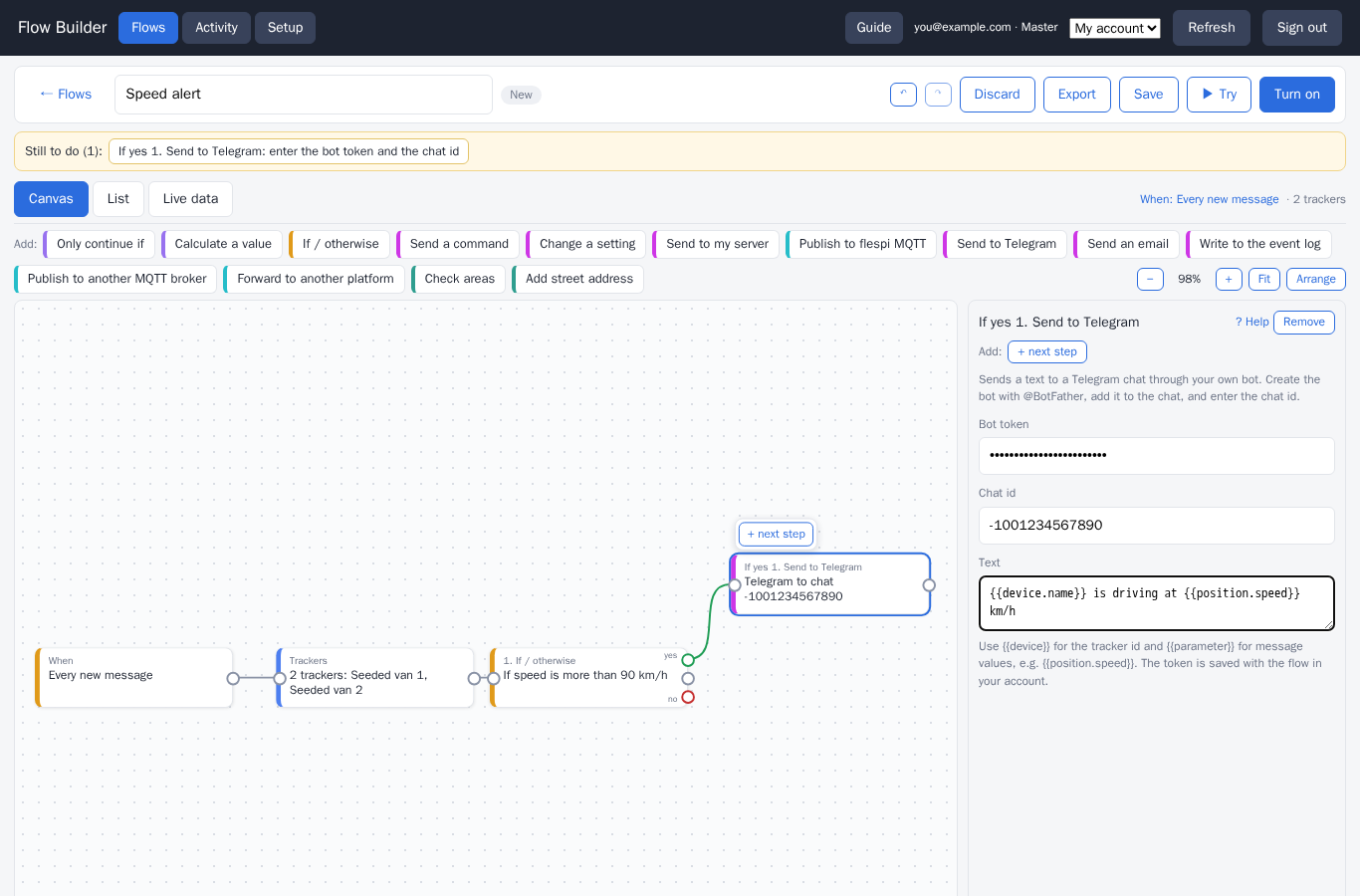 123
123- Bot token from @BotFather.
- Chat id of the chat that gets the alerts.
- The text. Values in {{double braces}} are filled in from the message.
- Try it. Press ▶ Try. Flow Builder runs the flow on the last messages of one of your trackers and shows what each step would do. Nothing is sent. See Try before you turn on.
- Save with Save.
- Turn it on. Press Turn on, then Review deploy plan (if you have not saved yet, the panel offers Save now first). Read the plan (what will be created, in plain words) and press Apply … change(s). The status changes to On. See Turning a flow on.
Canvas or List?
The same flow can be shown two ways. Canvas draws the steps as connected boxes you can click, drag and connect. List shows them top to bottom as a form, which many people find easier on a phone. Changes in one view appear in the other. ↶ and ↷ undo and redo (Ctrl+Z / Ctrl+Shift+Z).
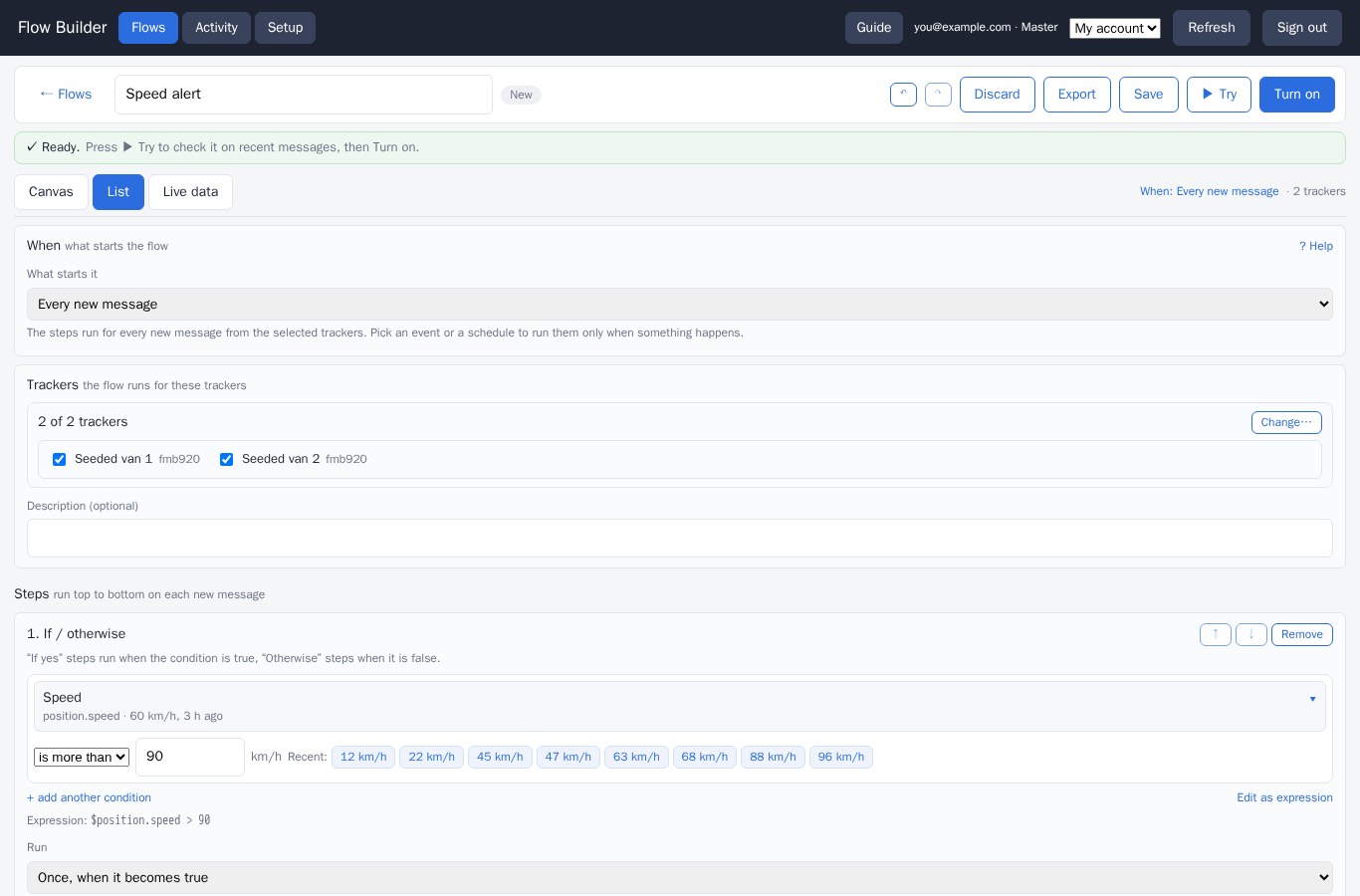 123
123- The When block always comes first.
- The trackers the flow runs for.
- The steps, top to bottom. Each If shows its condition and how often it runs; its “if yes” and “otherwise” steps are indented below it.
5. When a flow runs
The When step at the start of every flow decides when the flow runs. Click it (on the canvas, or the When: line above the views) to choose:
| When | What it means | You set |
|---|---|---|
| Every new message | The steps run for each message the trackers send. | — |
| A tracker goes offline and comes back | Starts when a tracker sends nothing for the set time; ends with its next message. | Minutes without messages (default 10) |
| A tracker enters or leaves an area | Starts when a tracker enters one of your areas; ends when it leaves. | The areas, drawn on a map |
| A trip starts or ends | Starts when a trip begins; ends when the tracker has stopped. | Moving over a speed (default 5 km/h) or by ignition; stop time; shortest trip |
| A condition lasts some minutes | Starts when a condition has been true for the set time, e.g. idling for 5 minutes; ends when it stops being true. | The condition and the minutes (default 5) |
| On a schedule | Runs at set times, also when the trackers are parked or offline. | Every N minutes, every N hours, every day or every week at a time, in your time zone |
Events: At start and At end
Every choice except “Every new message” is an event. The flow then gets a What happens step with two lists: steps under At start run when the event begins (the tracker went offline, entered the area), steps under At end run when it ends (it is back, it left). Leave a list empty if you only care about one side. A schedule has only Each time.
Under an event you can add results (Telegram, email, event log, a command, a setting change, a web request, flespi MQTT, an event message) and two kinds of checks:
- If / otherwise: check something about the tracker at that moment (its latest values, online or offline, the day and hour) and run different steps for yes and no;
- Only continue if: run the steps below only when the check is true.
Steps that change message data, and forwarding to other platforms, need “Every new message”. Flow Builder tells you when a step does not fit the chosen trigger.
Drawing areas
For “enters or leaves an area”, press the map button in the When step. Draw a shape around the place on the map, name it, and close the map. Your trackers’ last positions are shown as dots to help you. You can draw several areas; an existing area can be reused.
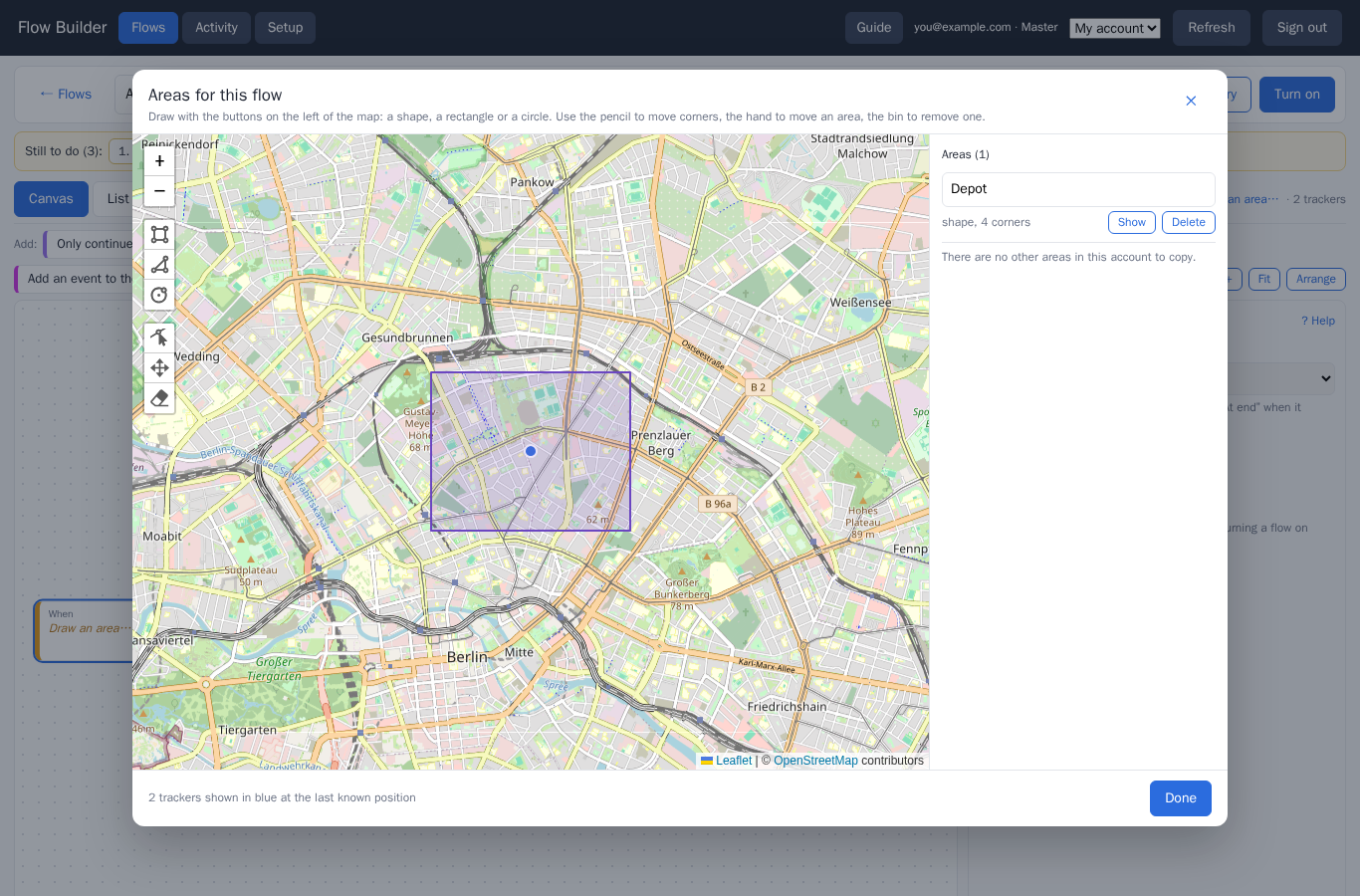 123
123- Drawing tools.
- Your area.
- The list of areas in this flow; rename or delete them here.
Schedules
A scheduled flow runs once per run for the whole group of trackers, not once per tracker. Add Only continue if to pick the trackers that matter at that moment, e.g. “is offline”. A message step then sends one summary per run; use {{count}} (how many trackers matched), {{total}} (how many the flow watches) and {{names}} (their names) in its text, e.g. {{count}} of {{total}} trackers offline: {{names}}.
6. Every step explained
Add a step with the + buttons on the canvas or in the List view. Each step opens a small form. Fields that expect a value from your trackers offer a picker with the parameter names and their current values, so you rarely need to type a name.
Conditions and values
Only continue if
Stops here unless the condition is true. Later steps only see what passes.
If / otherwise
Checks a condition. Steps under if yes run when it is true, steps under otherwise when it is false. Choose how often:
- Once, when it becomes true: “if yes” runs one time when the condition becomes true, “otherwise” one time when it stops. Best for alerts and commands.
- On every message: runs for each message.
Calculate a value
Adds new values to the message, calculated from its other values. Later steps, your apps and the stored messages can use them. Rows marked Required must succeed; if one fails, the step writes nothing for that message (the message itself is still stored).
speed.mph = speed × 0.621.Commands and settings
Send a command
Queues a command to the tracker that sent the message (in a scheduled flow, to every tracker of the flow). Choose the device type and the command; commands with several options get a form. The command is delivered when the tracker is connected, within its time to live.
Change a setting
Writes a new value of a tracker setting, for example its reporting intervals or server. flespi keeps it as pending and delivers it when the tracker is connected. The whole setting is replaced, so the form starts from the tracker’s current value.
Sending and publishing
Texts in these steps can include values from the message: write the parameter name in double braces, e.g. {{position.speed}}. In event flows you can also use {{device.name}}, {{ident}}, {{begin}}, {{end}} and {{duration}} (seconds); the step lists the values that fit.
Send to Telegram
Sends a text to a Telegram chat through your own bot. Create the bot with @BotFather, add it to the chat, then enter the bot token and the chat id in the step.
{{device.name}} left the depot.Send an email
Sends an email through your own account at SendGrid, Brevo or Mailgun. Pick the service, enter its API key, the sender and the recipients, the subject and the text.
Write to the event log
Writes a record to the Flow Builder event log in your account, kept for 30 days. Read it in the flow’s Activity → History. A good first result while you test a flow.
Send to my server
Posts the message, or your own text, to a web address (your server, a chat tool, an automation service). Use {{parameter}} to insert values; add headers such as an API key under Advanced. Failed requests are retried for up to a day.
Publish to flespi MQTT
Publishes to the MQTT broker of your flespi account, where your apps and dashboards can subscribe to the topic you choose.
Publish to another MQTT broker
Publishes each message to an MQTT broker of your own. Works with “Every new message”.
Forward to another platform
Sends each message to another platform or server, for example Wialon, Traccar, GPSWOX, an HTTP server or a cloud IoT hub. Pick the platform; its connection settings appear as a form. Works with “Every new message”. When the other side is down, messages wait in a queue for up to an hour.
Areas, addresses and events
Check areas
Adds the name of the area the tracker is in to each message with a position. Later steps can check it, e.g. area name is Depot.
Add street address
Adds the street address to each message with a position. Choose the address service: Wialon (free, no key), OpenStreetMap Nominatim (your own server), or Google, HERE or LocationIQ with your API key.
Add an event to the trackers’ messages
Writes an event message into the trackers’ own history, so another flow on “Every new message” can react to it. For example, a schedule can start a check in another flow.
7. Try before you turn on
Press ▶ Try in the editor at any time, even before saving. Pick a tracker at the top of the panel. Nothing is written, sent or queued while you try.
- Every new message flows run the steps over the tracker’s last 5 messages and show what each step would do: values calculated, conditions true or false, the text that would be sent.
- Event flows replay the trigger over the tracker’s last two days and show when the event would have started and ended, and what would have run each time.
- Scheduled flows show the next runs.
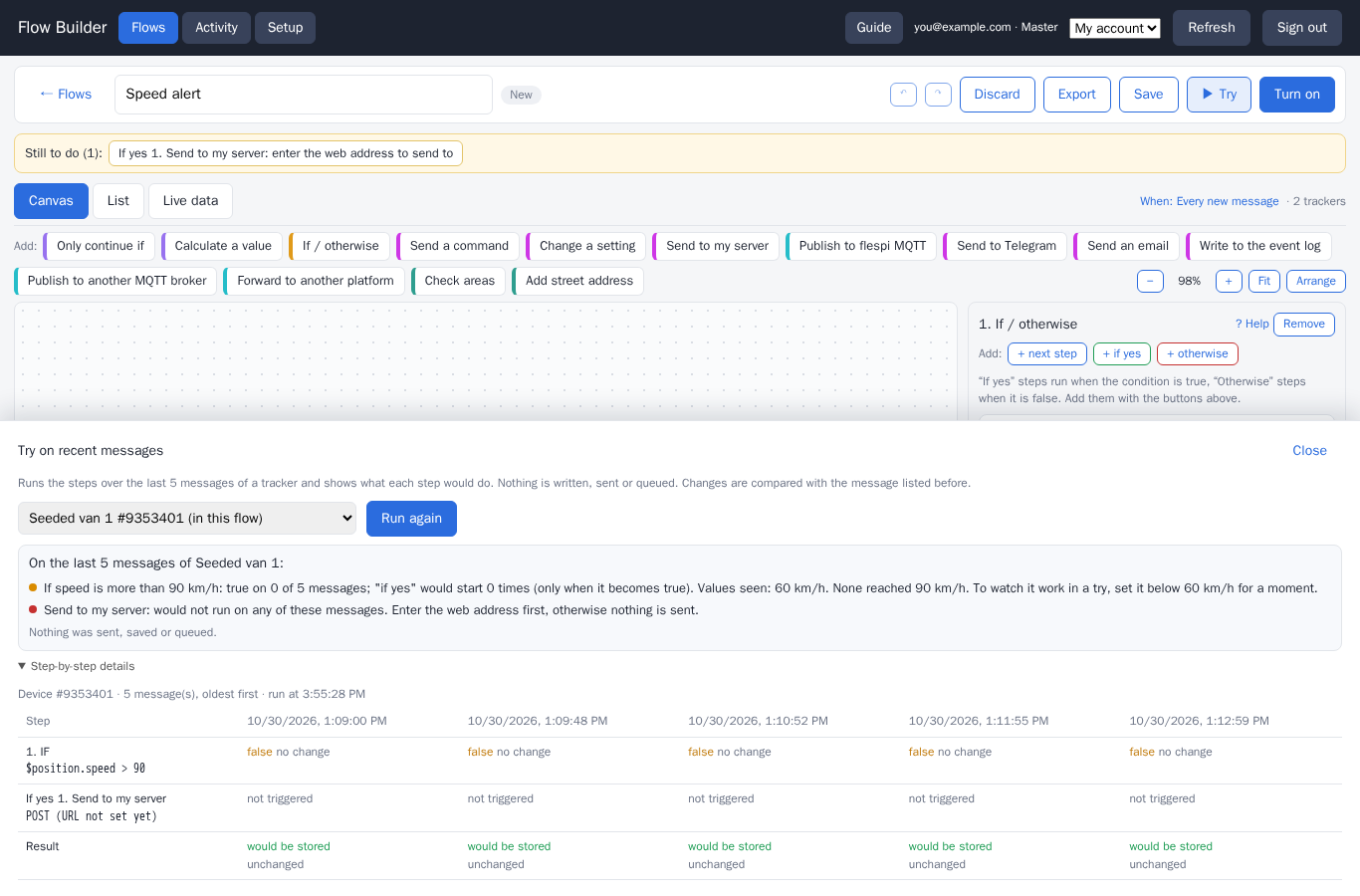 123
123- The tracker to try with.
- The summary: how often each result would have run.
- The result of each step for each message.
8. Turning a flow on
Save the flow, then press Turn on. The panel shows:
- Anything still missing. If steps are incomplete, the panel lists them first (“Before this flow can run, finish these”). Unsaved changes have to be saved: press Save now.
- Order. Run this flow: “after the existing plugins on these devices” (the default) or “before the existing plugins”. This only matters if the trackers already have plugins that change their messages.
- Review deploy plan (Review changes to deploy for a flow that is already on). Shows what will be created, changed or removed, in plain words, marked CREATE, CHANGE, LINK, ADD, DELETE or REMOVE. Trackers that cannot be used (e.g. shared with you for viewing only) are listed as SKIP.
- Apply. Press Apply … change(s). Progress is shown step by step; when it finishes the flow is On.
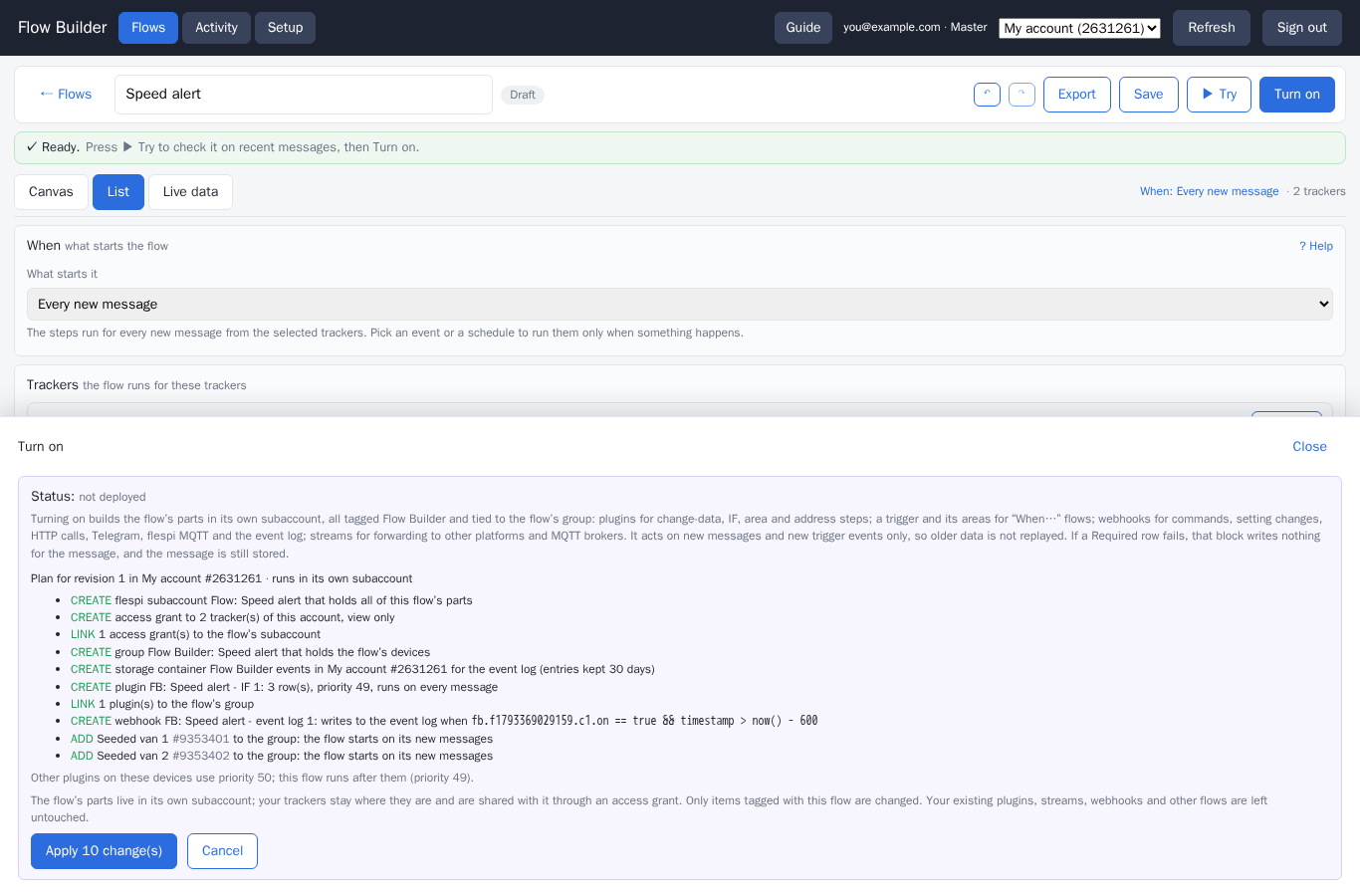 123
123- What the flow will create, in plain words.
- Access to the trackers it works on.
- Apply the plan, or cancel.
What gets created
Each flow gets its own subaccount in your account, named “Flow: <flow name>”. Your trackers stay where they are; the flow’s subaccount is given access to them. Inside it Flow Builder creates only what the flow needs:
- plugins for steps that calculate values, check conditions, add area names or addresses;
- a trigger (a flespi calculator) and its areas for event flows;
- webhooks for commands, setting changes, web requests, Telegram, email, flespi MQTT and the event log;
- streams for forwarding to other platforms and MQTT brokers.
Everything is tagged “Flow Builder” and tied to the flow. Flow Builder hides the flows’ subaccounts in its own lists, so they do not clutter your view. A flow acts on new messages and events only; older data is not replayed.
Limits and cost
- A flow counts against your flespi plan like anything else you create: a subaccount, access grants, and its plugins, calculators, webhooks and streams.
- Every request a webhook makes counts toward your account’s API calls. A schedule every minute with an Only continue if step makes about 1,440 requests a day for that step; every 10 minutes, about 144.
- Turning flows on needs full (master) access to the account; Flow Builder tells you if your sign-in cannot do it.
9. Watching it work
Activity
The Activity page lists the flows that are on. Open one, or press Activity in the editor toolbar of a running flow, to see the latest events since it was turned on, newest first: messages each step processed, requests sent (including queued commands) and messages published. Press Refresh to update.
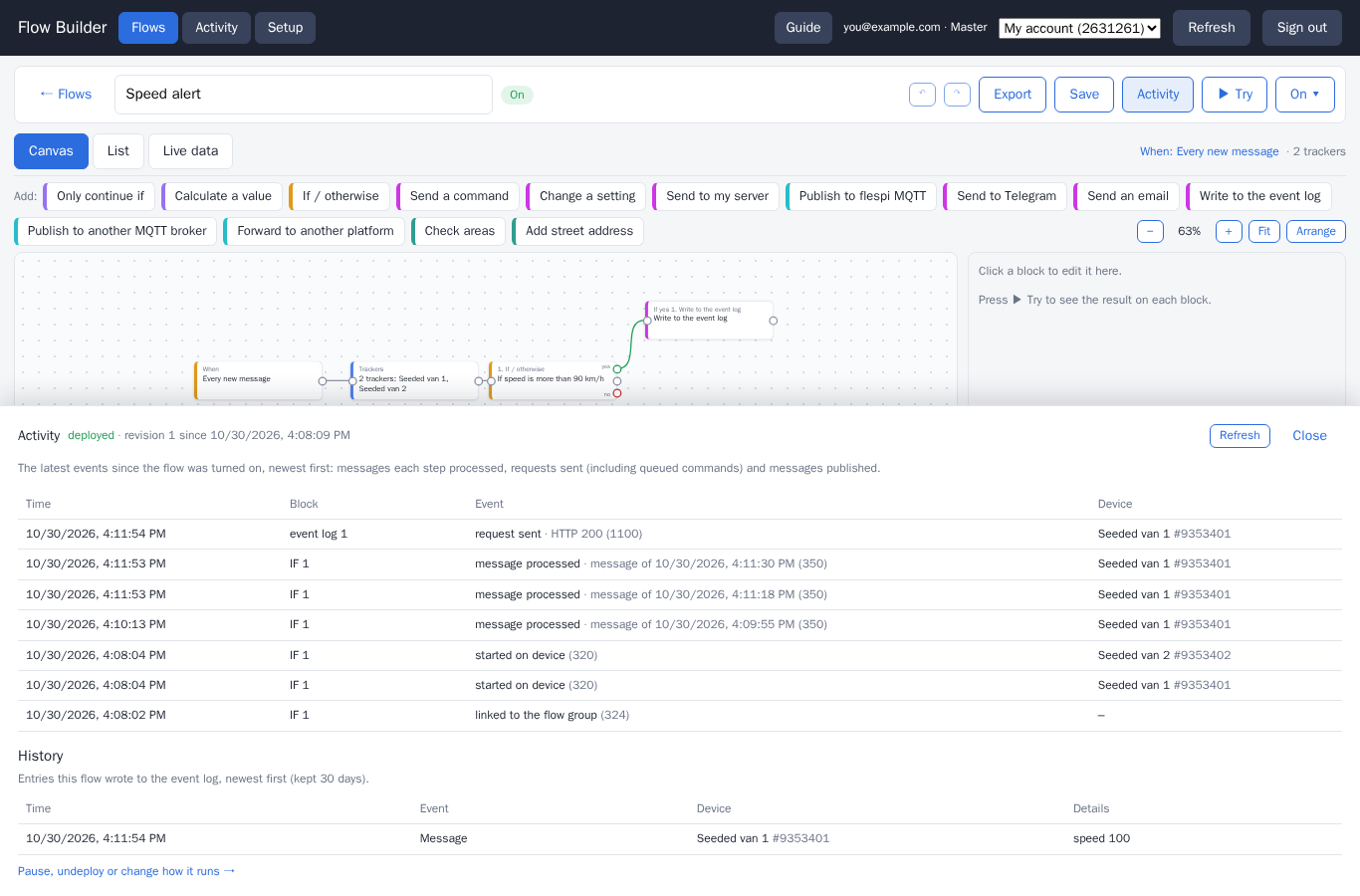 123
123- Status and when the flow was turned on.
- The latest events of each part of the flow.
- History: the entries the flow wrote to the event log.
History
If the flow has a Write to the event log step, its entries appear under History with the time, the tracker and the text (the latest 20; the log keeps 30 days).
Live data
The Live data view in the editor shows the latest value of each parameter (one row each) for every tracker of the flow (one column each), updated as messages arrive. Changed values flash for a few seconds; hover a value to see its time. Names highlighted are values your steps write; they appear once the flow is on. Type in filter parameters to find one, keep hide empty on to shorten the table, and press Pause to freeze it while you read.
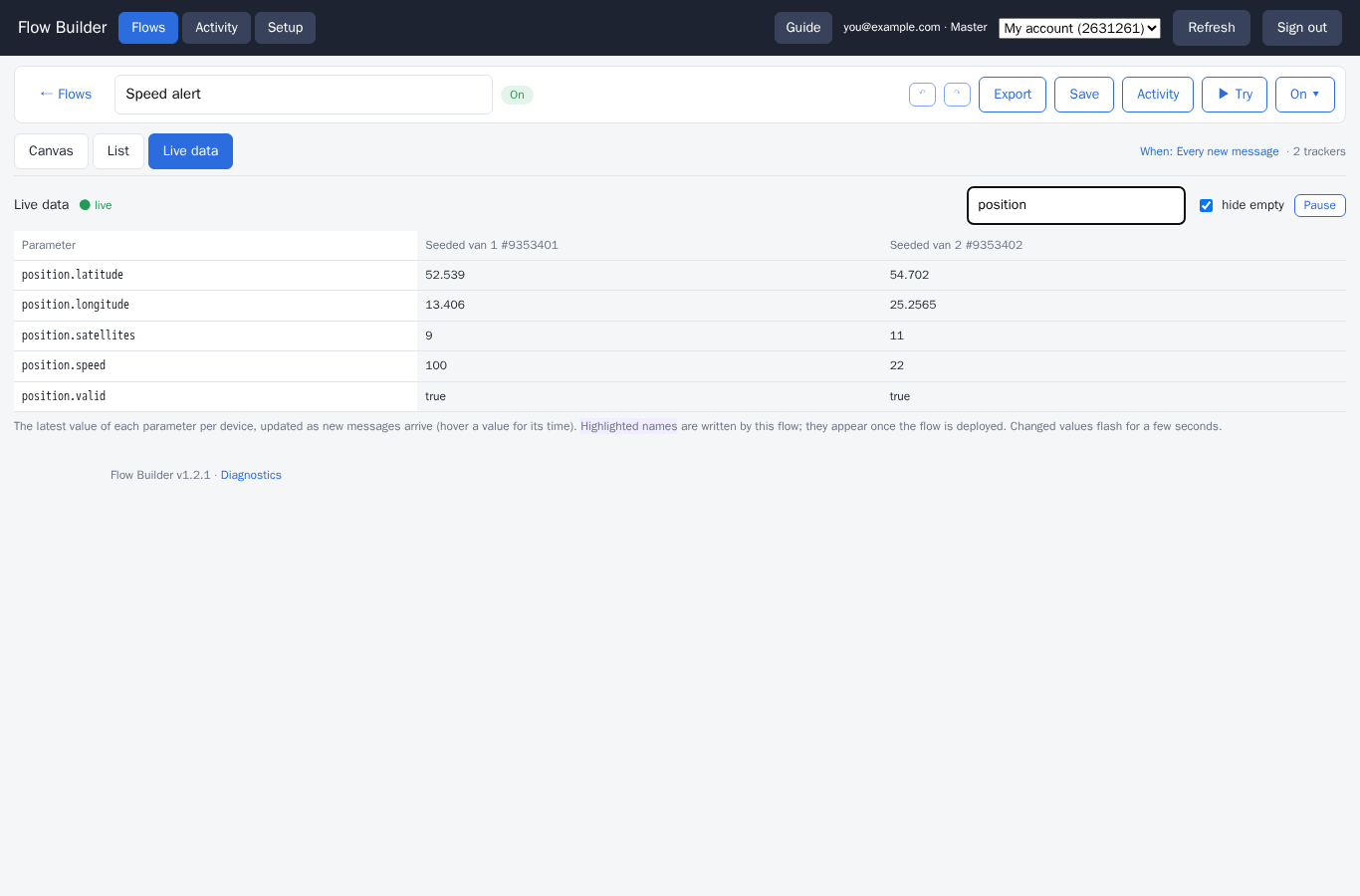 123
123- One row per parameter.
- One column per tracker.
- Filter, hide empty values, pause the table.
10. Changing, pausing and removing flows
Changing a running flow
Edit the flow and press Save. The running version keeps working until you press Apply changes and confirm the plan, which then lists only what changes. Until then the editor says which revision is saved and which one is running, and Restore running version brings back the running one. Discard throws away edits since your last save.
Pause, Resume, Undeploy
In the editor of a running flow, press On ▾ (Paused ▾ when paused) in the toolbar. The panel offers:
- Pause stops the flow but keeps everything in place; Resume starts it again.
- Check activity shows what the flow did recently (see Watching it work).
- Undeploy removes everything the flow created (its subaccount, its access to the trackers, commands it queued that were not delivered yet). The flow itself stays as a draft, so you can turn it on again later. Removed items stay in the flespi recycle bin for 30 days.
Deleting a flow
Press ✕ on its card and confirm. For a flow that is on, Flow Builder asks to undeploy it first and then deletes it. A deleted flow cannot be restored, so export it first if you may want it back.
Export and import
Export (in the editor or on the card) downloads the flow as a file, to keep a copy or share it with a colleague. Trackers and secret keys (bot tokens, API keys, passwords) are left out. ↑ Import a flow from a file on the home page creates a new flow from such a file; pick its trackers, fill in the keys, then save.
On a phone
Flow Builder works on phones. The List view is the easiest way to edit there; the canvas fits the flow to the screen, and the step forms open as a sheet from the bottom.
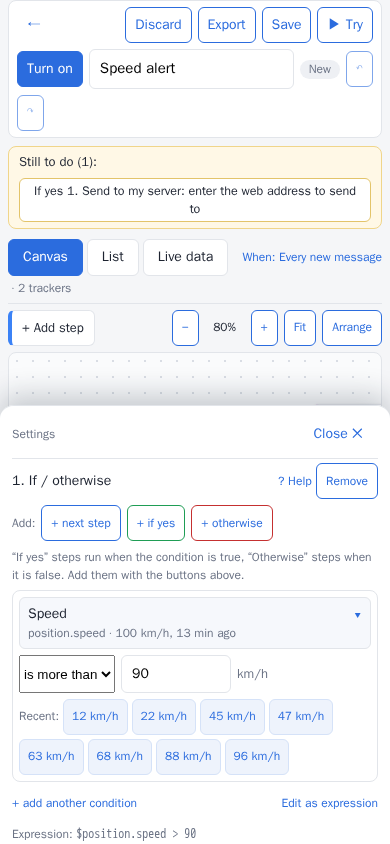 12
12- The editor toolbar.
- A step form open as a sheet.
11. Troubleshooting and FAQ
Nothing happens when I press “Sign in with flespi”.
The browser blocked the pop-up. Allow pop-ups for the Flow Builder page and press it again.
I am asked to sign in again.
The session ended after an hour without activity. Sign in again; running flows were not affected.
I can’t press Turn on, or Review deploy plan is greyed out.
Save first, and finish the items in the “Before this flow can run” strip at the top of the editor.
The flow is on but nothing happens.
- A flow only reacts to new messages and events. Check that the trackers are reporting.
- Open Activity: it shows whether the steps saw messages and whether requests were sent or failed.
- Check the trackers in the plan: trackers marked SKIP are not included.
- With “Once, when it becomes true”, the condition has to become false and true again before the next alert.
- Right after you turn a flow on, the first message from each tracker only records its starting state. A tracker that is already over the limit at that moment alerts only after it drops below the limit and goes over again.
Telegram messages don’t arrive.
Check the bot token and chat id, and that the bot is a member of the chat. Activity shows the reply of Telegram for failed requests.
A command was sent but the tracker didn’t react.
Commands wait until the tracker is connected and expire after their time to live. Check the command and its options with your tracker’s manual.
Something else went wrong.
The Diagnostics link at the very bottom of the app, next to the version number, shows the app’s log. Copy it and send it with your question.
Glossary
| Tracker | A GPS device or other device that sends data to flespi. |
| Message | One report from a tracker: its position, speed, ignition and other values. |
| Parameter | One value in a message, e.g. position.speed. |
| Flow | An automation you build in Flow Builder. |
| Trigger | What starts a flow: the When step. |
| Step | One block of a flow: a check, a calculation or a result. |
| Channel | The flespi address and port your trackers connect to. |
| Subaccount | A separate area inside your flespi account; each running flow has its own. |
| Plugin, calculator, webhook, stream | The flespi building blocks a flow is made of: plugins change messages, calculators detect events, webhooks send requests, streams forward data. |
12. What’s new
v1.2.1
- This guide, with a Guide link in the app header, on the sign-in screen and under every step’s ? Help.
- The sign-in screen now offers only Sign in with flespi.
v1.2.0
- Checks on the tracker inside event flows: If / otherwise and Only continue if under At start and At end.
- Scheduled flows: Only continue if picks the trackers that match, and message steps send one summary per run with
{{count}},{{total}}and{{names}}. - New step Add an event to the trackers’ messages.
Earlier
- v1.1: forms for complex commands, Change a setting, Forward to another platform, forms for complex channel settings in Setup.
- v1.0.3: the When step on the canvas, template intros, ? Help per step, export and import, the trackers list on the home page.
- v1.0.2: schedules run on their own, also when trackers are parked.
- v1.0.1: more address services, Send an email, History.
- v1.0: event triggers (offline, areas, trips, conditions that last, schedules), Telegram, flespi MQTT, the event log, areas drawn on a map.